 Builder Docs
Select an app and open the gear menu in the browser toolbar. Save or discard pending editor changes first. These settings apply to the selected app, not your account.
Use App details to set the app's identity and descriptive information.
- Open the gear menu → App details.
- Review the app name and page title, then update the tagline and description as needed.
- Leave the subdomain unchanged unless you intend to change the app's address. To change it, enable Edit subdomain, enter the new slug, and wait for the availability result.
- Scroll to Save settings and submit. Resolve validation errors before leaving the panel.
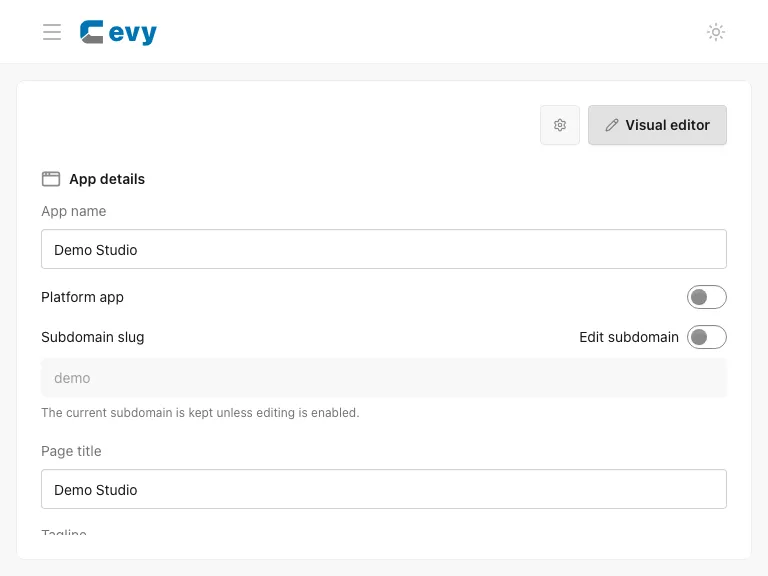
Changing an app's name is different from editing a heading authored on its page. To change visible page copy, use the right-hand inspector. Cevy Owners can enable Cevy app to publish an app at cevy.tech/<app-slug> (localhost:3000/<app-slug> locally). Multiple apps can be enabled independently. Changing the saved slug changes this path; disabling the option removes the company-site path without unpublishing the tenant app. This option is not needed for previews.
For the logo and alternative text, see Logo and branding.
Return to editing
Use Back to inspector to leave an ordinary settings panel. For a manager shown in the canvas, return to the normal app editor before selecting page elements. If a save fails or a control is disabled, check pending draft edits, the displayed error, feature availability, and your permissions before retrying.