 Builder Docs
Use Customer Support in the Help sidebar to contact the builder team. Report a bug opens the same workspace with the Bug category selected. Cevy administrators can also open Manage → Support.
Find a ticket
Choose your organization if you belong to more than one. Owners and organization administrators see the organization's tickets; other members see only tickets they requested. Cevy administrators can choose All organizations.
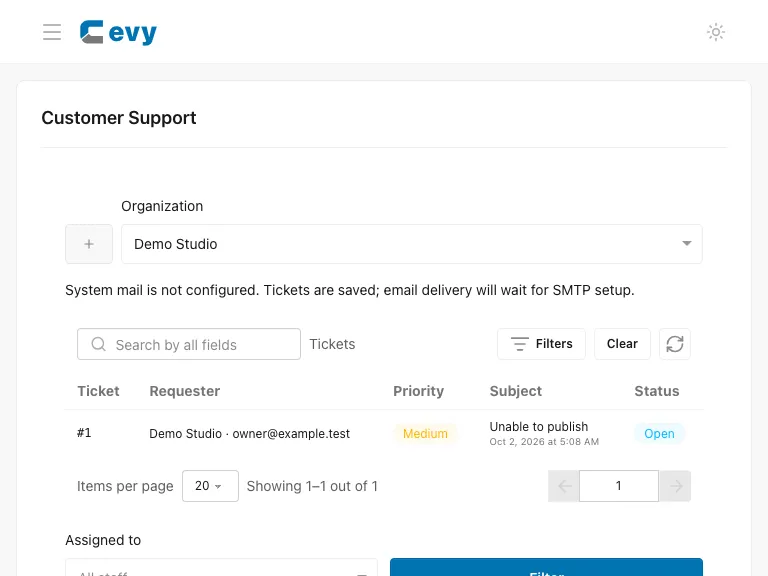
Search by ticket number, subject, requester name/email or organization. Use the status buttons for Open, Pending, On hold and Closed. Filters narrows category, priority and status; Cevy admins can also filter assignment. Pagination and page size apply to the filtered results. Choose a ticket number to open its conversation.
On large screens the queue and conversation appear together. On smaller screens, Back to tickets returns to the queue. Refresh reloads the conversation and ticket details without clearing an unsent message. There is no automatic polling.
Create a ticket
- Choose New ticket and the relevant organization.
- Enter a clear subject, select Support or Bug, and choose a priority.
- Optionally select the related app. Cevy admins creating a ticket for someone else also select the requester.
- Describe what happened, what you expected and the steps to reproduce a problem. Do not include passwords, access tokens or other secrets.
- Select supporting files if useful, wait for preparation to finish, then choose Create ticket below the message. Ready attachments upload with the ticket; there is no separate upload action. Replies work the same way.
The first message and ticket are saved together. Retrying the same submission does not create another ticket. Validation failures leave the form available for correction.
Open a conversation to reply, manage status, and review attachments or notifications.